The Set Editor Window
The Set Editor lets you arrange a number of cymbal and reverb presets (up to 100 presets in each cymbal channel and up to 100 reverbs) into a Presets Set file, and also provides a graphical user interface for creating Kit Presets from the cymbal presets present in the Presets Set file. Using the set editor you can change the number of presets in any channel of the DCP, rearrange their order, and change which presets are stored in which DCP channel(s). For example, if your kit has two crash cymbals and the factory set has only one channel with crash presets in it, you can easily copy crash presets to another channel for use with your second crash.
Exporting a Presets Set to a DCP is the only way (other than a firmware update) to change the number of presets stored in the DCP.
Once you've created a Presets Set file you can export it to your DCP with one Export operation, completely changing all its presets. You could have different sets of presets prepared ahead of time for different types of gigs, for example.
The Distinction Between Presets in a Set File and Individual Preset Files Stored Separately on Disk
Set files are self-contained - they contain all of the preset data of every individual preset they contain. This makes it possible to share or publish a Set file without having to also send the individual files it is comprised of. In order to facilitate quick changes to presets in a Set without having to open, edit, save, and reload the individual presets, the Set Editor includes some editing features, however it is important to understand that any changes made using the Set Editor's editing features will not be saved to the original individual preset source file(s) - they will only be saved back into the copy that is part of the Set file.
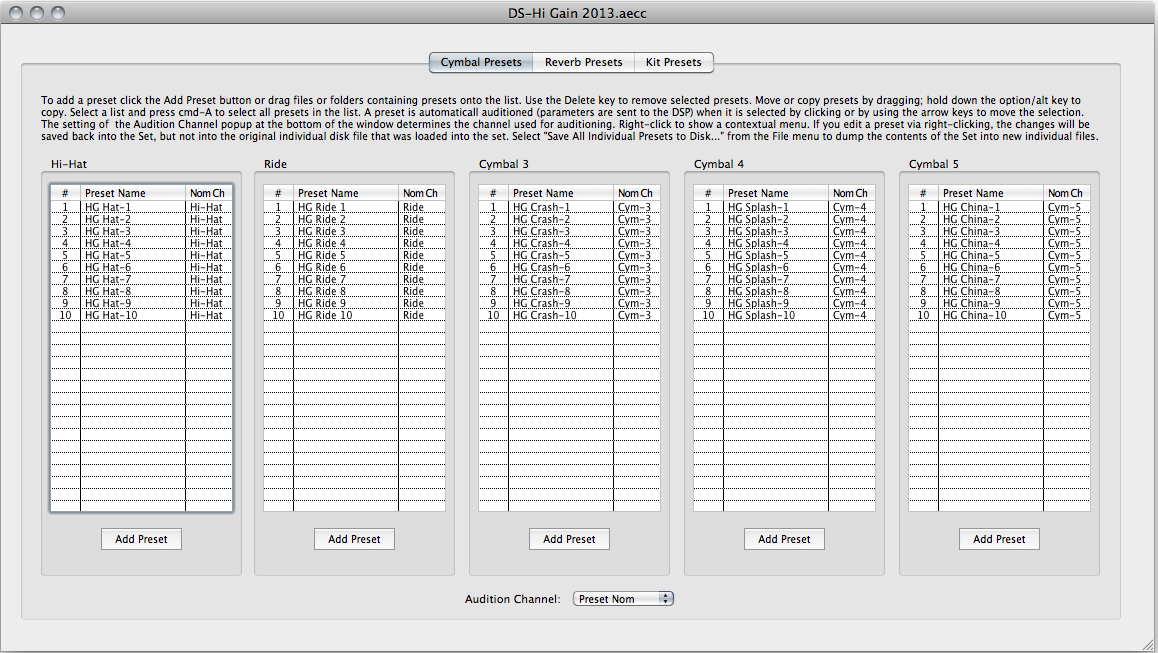
When a Presets Set file (*.aecc) is opened in the DCP Access Tool it will open in a Set Editor window. Here's what a Set Editor window looks like:
The Set Editor window has three tab panes: Cymbal Presets, Reverb Presets, and Kit Presets.
The Cymbal Presets Pane
The Cymbal Presets pane of the Set Editor window has five lists, each one representing all the cymbal presets stored in its designated DCP cymbal channel. Each cymbal channel can store up to 99 presets. The five cymbal channels do not have to have equal numbers of presets, but each must have at least one preset. The order in which the presets are shown in these lists is the same order that they'll be stored in in the DCP.
Basic Operations
To add a preset to a cymbal channel, click the Add Preset button under its list or drag files or folders containing cymbal presets from your desktop onto the list. Use the Delete or Backspace key to remove selected presets. Move or copy presets by dragging; hold down the option/alt key to copy. Select a preset in a list and press cmd-A to select all presets in that list.
Auditioning Cymbal Presets
Auditioning from a Set Editor window is the fastest and most convenient way to compare or "A-B" different cymbal presets. Auditioning sends all the DSP parameters of the preset to the DCP so you can hear what it sounds like. You can "audition" a cymbal preset from the Cymbal Presets pane by simply clicking on it in the list. Having selected one preset by clicking, you can scroll up and down the list using your PC's up and down arrow keys - each preset will be automatically auditioned as you scroll.
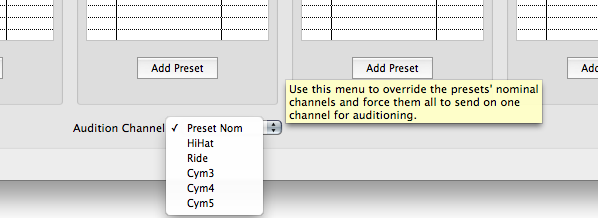
At the bottom of the window is a popup menu labeled "Audition Channel" (shown below). The setting of the Audition Channel popup determines which DCP channel used for auditioning. If it's set to "Preset Nom" (the default setting) then the preset will be auditioned in its nominal channe, i.e. the one it was assigned to when it was last saved to disk. Each preset's nominal channel is shown in the "Nom Ch" column of the list. Note that a preset's nominal channel is determined by what channel it was assigned to when it was saved to disk, not by which channel's list it happens to be in in the Set Editor window.
If the Audition Channel is set to a specific cymbal channel, then all auditioning will take place on that channel regardless of the presets' nominal chanels. This is a good way to "find out what that hi-hat preset sounds like on my ride"; you can audition any preset on any cymbal.
The Cymbal Preset List Contextual Menu
When you control-click or right-click on a preset in one of the five cymbal preset lists, a contextual menu will appear, offering several choices:
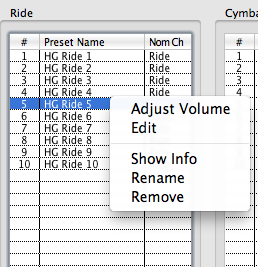
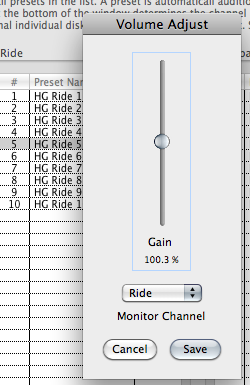
Adjust Volume - Opens a window where you can quickly adjust the preset's volume:
Note that any volume adjustments will be saved only to the preset(s) stored in the preset Set (*.aecc file)- they will not be stored to the original preset file(s) (*.aecd) from which the Set was created.
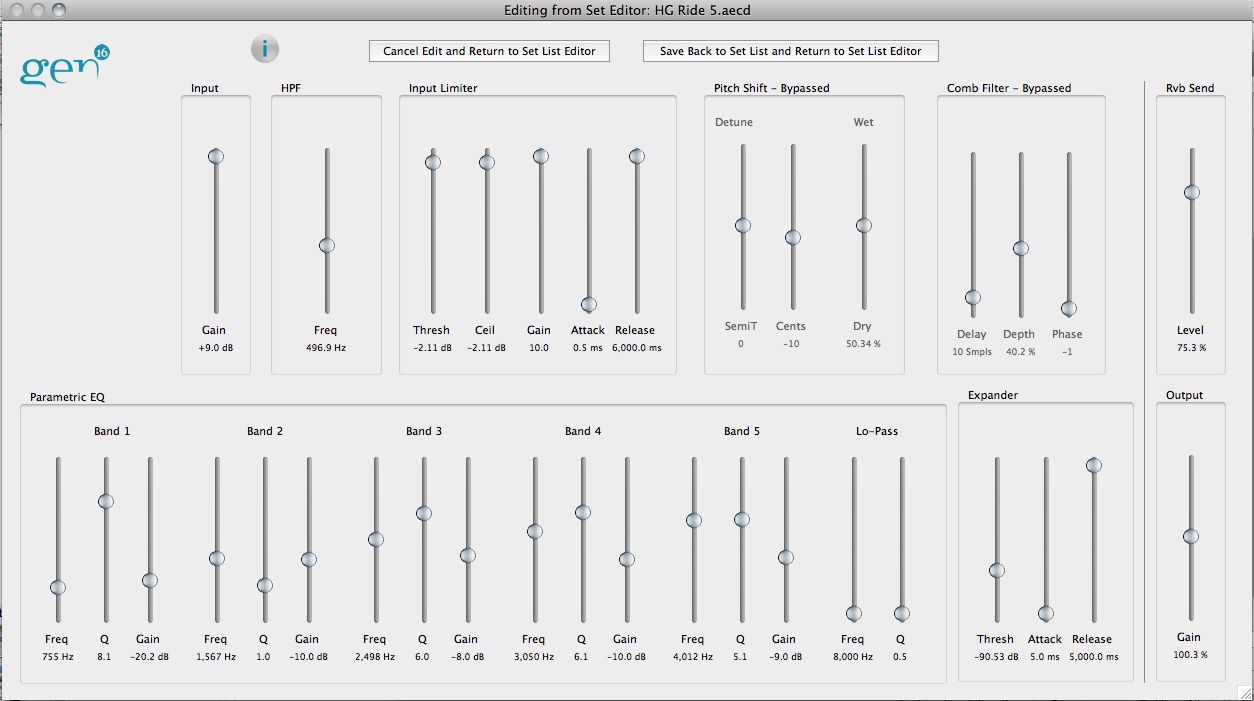
Edit - opens the preset in a special version of the Cymbal Editor window:
You'll notice that there is no Channel/Preset Selector control in this window, and the button bar is different from that of the normal Cymbal Editor:
After making changes to the preset, you can save it back to the Set from which it was opened. Again, any changes will be saved only to the preset stored in the preset Set (*.aecc file)- they will not be stored to the original preset file (*.aecd) from which the Set was created.
Show Info - show's the preset's information and allows you to edit its description. This is the same as clicking the Info Button in a Cymbal Editor window.
Rename - Allows you to change the preset's name as stored in the DCP and displayed in the Set and Symbal Editor windows.
Remove - Removes the selected preset(s) from the list. Same as pressing the "delete" key on your keyboard.
The Reverb Presets Pane
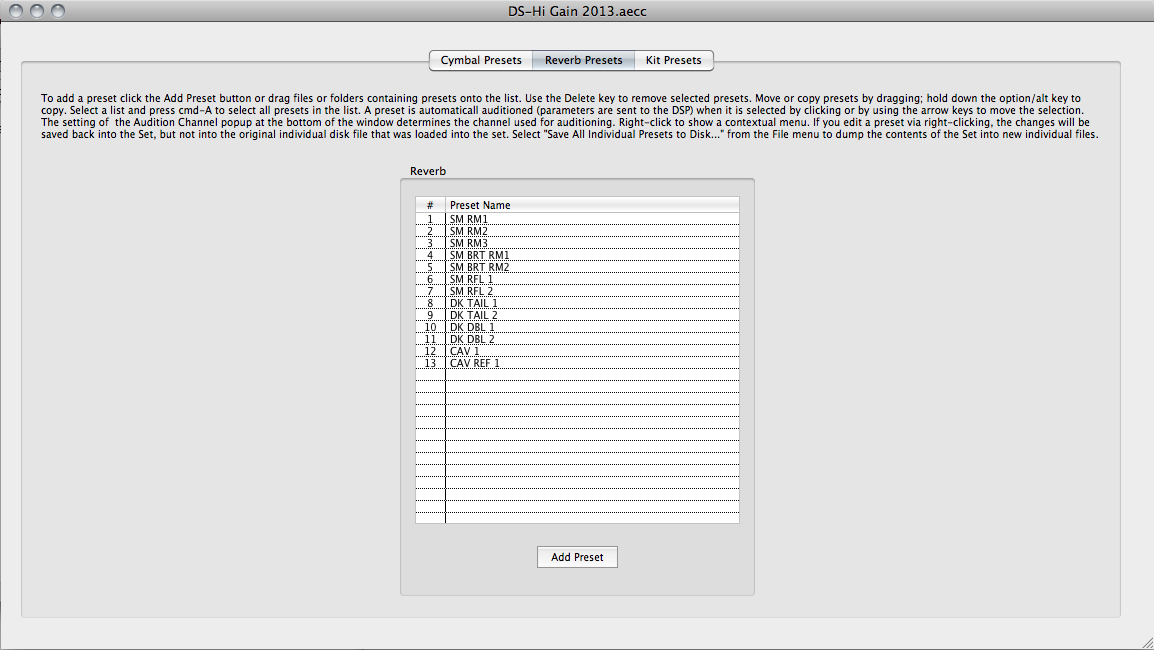
The Reverb Presets pane works just like the Cymbal Presets pane except that there's no Audition Channel control since there's only one "reverb channel".
The Kit Presets Pane
The Kit Presets feature of the DCP allows you to arrange your cymbal presets into "kits" that can be quickly called up in performance situations with just a button press on the DCP's keypad. While kit presets can be created using the DCP's onboard controls (see the DCP Advanced User Guide for details of creating and recalling kit presets using the DCP UI) you may find it more convenient to create and edit kit presets using the graphical interface that the Set Editor window provides in its Kit Presets tab pane.
Another advantage of creating Kit Presets in the Set Editor is that they will be saved together with your cymbal and reverb presets, so everything will be exported at once to your DCP when you export the aecc file. You can have different aecc files prepared in advance for each gig or session and load everything you need for that occasion with one export operation.
Let's take a look at the Kit Presets pane of the Set Editor:
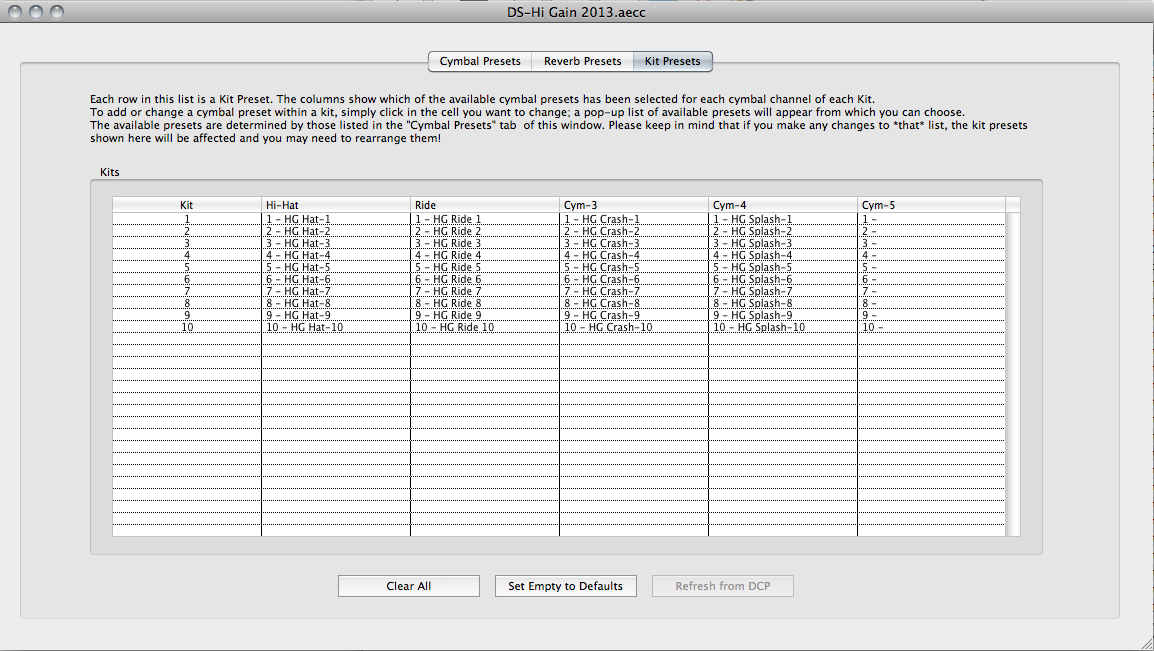
Each horizontal row in the list is a Kit Preset. The number of Kit Presets is always equal to the number of Cym-5 cymbal presets. This is because in Kit Preset mode, the Cym-5 display does "double duty" as both the Kit Preset number and the number of the Cym-5 preset in each kit.
Each column of the list is a DCP cymbal channel. The contents of each "cell" show which of the available cymbal presets has been selected for that cymbal channel of that kit.
If you're creating a new Presets Set, this pane will be empty, and because Kit Presets can only consist of Cymbal Presets that are already in the Presets Set, you won't be able to do anything in the Kit Presets pane until you've added some cymbal presets in the Cymbal Presets pane. Furthermore, because the number of kit presets is always equal to the number of Cym-5 cymbal presets, you cannot make any kit presets until you've added some cymbal presets to the Cym-5 list. If you want a fully-populated Kit Preset list to use for kit editing practice, just import the existing presets from your DCP.
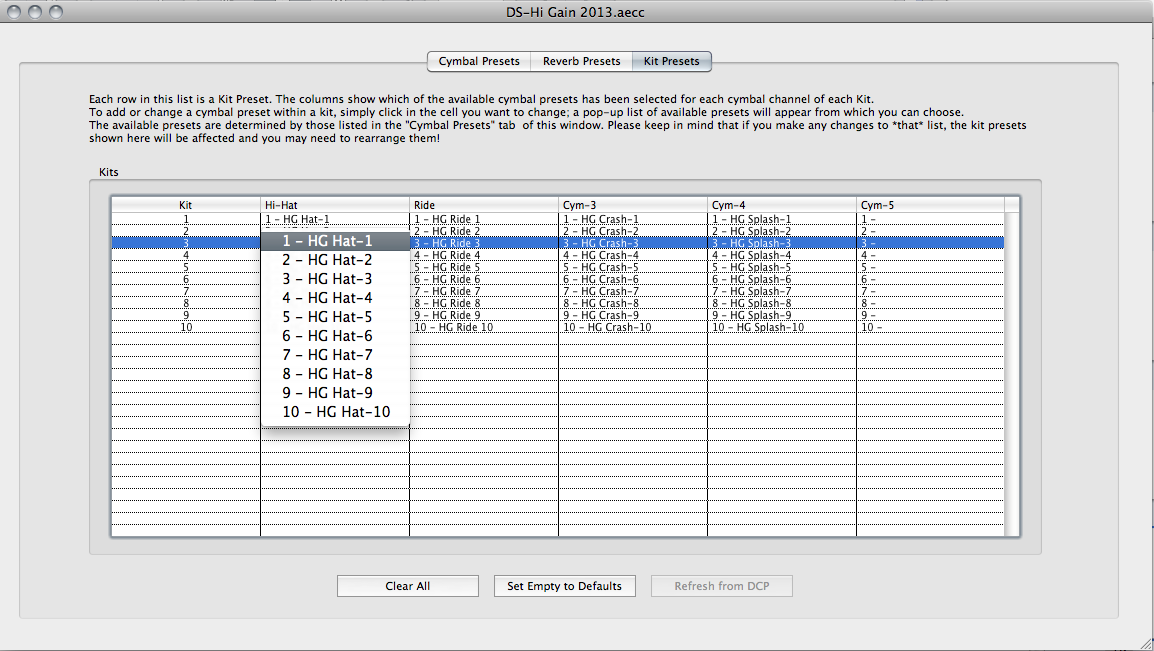
Once you've added cymbal presets to the set, clicking on any cell in the Hi-Hat, Ride, Cym-3, or Cym-4 columns of the Kit Presets pane will pop up a menu of all the presets available in that cymbal channel as shown below. Clicking in the Cym-5 column will not bring up the popup since since the Cym-5 cymbal preset is always the same as the Kit number. Selecting a preset from the pop-up list will overwrite whatever preset was previously selected in that cell. Clicking the "Set Empty to Defaults" button will automatically populate the entire list with default values, a quick way to get started, and clicking "Clear All" will clear all entries for a fresh start. If you decide after clicking on a cell that you don't want to change it, press the Escape key on your keyboard to abort the pop-up menu. The DCP Access Tool does not currently support Undo.
How Kit Presets are Stored
A kit preset is stored in the DCP as a set of cymbal preset numbers. For example, a kit might consist of Hi-hat preset #3, RIde #2, Cym-3 #1, Cym-4 #16, and Cym-5 #2. In the DCP's memory, this would be stored as 3-2-1-16-2. These are the numbers shown to the left of the preset names in the kit list and in the pop-up menu. If you make changes (add, remove, or move presets) to the cymbal presets in the Cymbal Presets pane, the preset numbers you see in the Kit Presets pane will change automatically to keep the same preset names at the locations you originally assigned to them. For example, if you had assigned the third hi-hat preset in the cymbal list to Kit 1's hi-hat slot, the kit list would initially have shown "3" as the number of the preset in that slot. If you then deleted the first hi-hat preset in the cymbal list, you would see that the preset number in Kit 1's hi-hat slot had changed to "2", since the preset that was formerly at #3 in the cymbal list is now at #2. Any Kit Preset slot whose assigned cymbal preset has been deleted in the cymbal list will become "empty".
Clicking the "Refresh from DCP" button at the bottom of the Kit Presets pane will reload the Kit Presets pane with the kit presets currently installed in the connected DCP.
Saving and Exporting Preset Sets
You can save your preset sets to disk in the usual ways (File->Save or File->SaveAs) or you can export a set directly to your DCP by selecting File->Export Preset(s) to Cymbal Processor or typing the keyboard shortcut cmd-E. If any cymbal channels or reverb have no presets, the export will be aborted and you'll be notified that a presets set cannot be exported unless all cymbals and reverb have at least one preset each.
Saving All Individual Presets of a Set to Disk
When a Set Editor window is frontmost in the application, an additional item is added to the File menu: "Save All Individual Presets to Disk..."
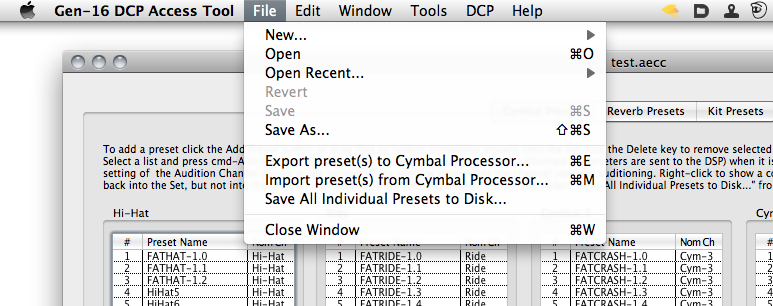
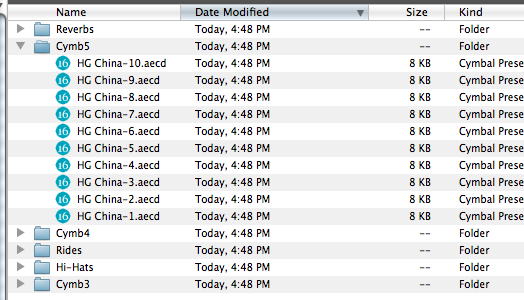
This item, as its name suggests, allows you to save all presets that make up the Set into individual *.aecd and *.aecr cymbal and reverb presets (kit presets are not saved). You will be given a chance to choose a destination, and the individual presets will be saved into appropriate folders:
See also: Editing Presets